Why Low‑Latency Matters for Remote Radio
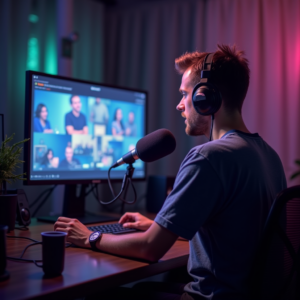
When you stream a live show, the gap between what you say and what your listeners hear is called latency. A standard internet broadcast can sit anywhere from two to five seconds behind the microphone, and that delay is noticeable the moment a caller tries to join the conversation.
Imagine you’re hosting a live call‑in contest. If the audience hears your question half a second late, they’ll answer out of sync, and the whole interaction feels clunky. Low‑latency streaming collapses that gap to under a second, making real‑time chats, polls, and on‑air giveaways feel truly live.
With LoovaCast’s Live‑Encoder, you can reliably achieve sub‑second latency on a solid connection. In practice, most broadcasters see an end‑to‑end delay of 800 ms to 1.2 seconds, which is fast enough for seamless interaction without sacrificing audio quality.
- 1️⃣ Unstable internet connection
- 2️⃣ Encoder configuration confusion
- 3️⃣ Monitoring latency in real time
- 4️⃣ Balancing audio quality vs. speed
Share your answer in the comments!
Gear Up: Hardware and Network Essentials
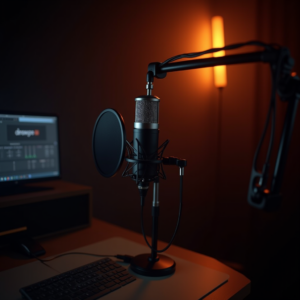
Before you even fire up the encoder, the right gear makes the difference between a smooth broadcast and a frantic scramble. For microphones, a cardioid condenser like the Audio‑Technica AT2020 shines in noisy environments, while a dynamic Shure SM58 offers rugged reliability for outdoor gigs.
Pair the mic with a portable audio interface such as the Focusrite Scarlett 2i2. It provides clean preamps and USB connectivity, and its compact size fits easily in a backpack. If you need to mix multiple sources on the road, a small mixer like the Behringer Xenyx 1202FX adds EQ and effects without adding latency.
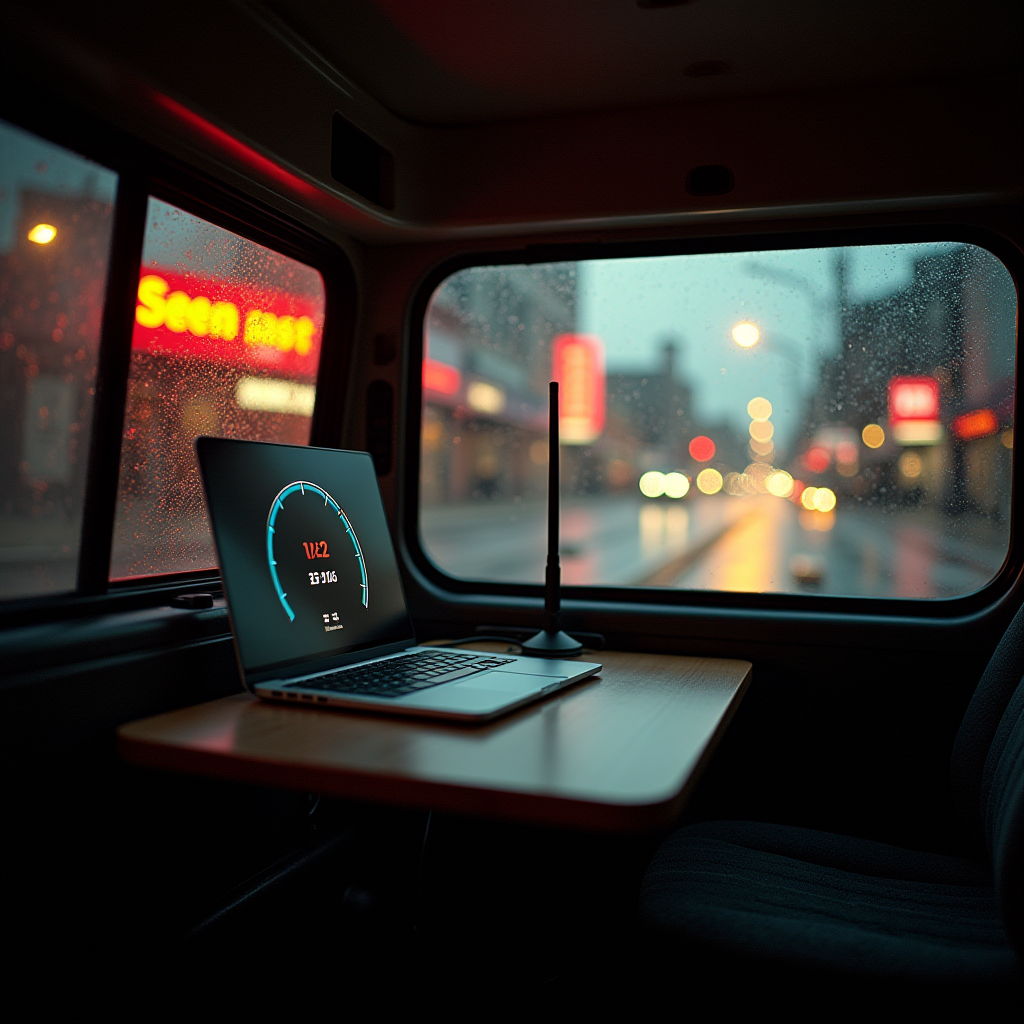
Network is the backbone of any online radio setup. Whenever possible, use wired Ethernet; a stable 100 Mbps link eliminates Wi‑Fi interference. If you must rely on Wi‑Fi, stick to the 5 GHz band and stay within a strong signal radius. Mobile hotspots should support LTE‑Advanced or 5G with at least 10 Mbps upload and low jitter (under 30 ms).
Test your upload speed with a tool like Speedtest.net. Run three consecutive tests and record the lowest result; that number becomes your safety net for bitrate decisions. Remember, a solid internet foundation is the first pillar of a successful online radio setup.
Installing LoovaCast Live‑Encoder on Your Machine
LoovaCast supports Windows, macOS, and Linux, so you can install the Live‑Encoder on virtually any workstation you already own. Start by visiting the LoovaCast downloads page and selecting the installer that matches your OS. The Windows .exe and macOS .dmg are straightforward—just double‑click and follow the on‑screen prompts.
Linux users can grab the .deb package for Debian‑based distros or the .rpm for Red Hat families. After downloading, run sudo dpkg -i loovacast‑encoder.deb (or the equivalent rpm command). The installer will place the program in /usr/local/bin and create a desktop shortcut.
Once installed, launch the encoder and sign in with your LoovaCast credentials. The first time you log in, you’ll be prompted to link the encoder to a station. Choose the station you created in the dashboard, copy the unique Stream Key, and paste it into the encoder’s “Station ID” field.
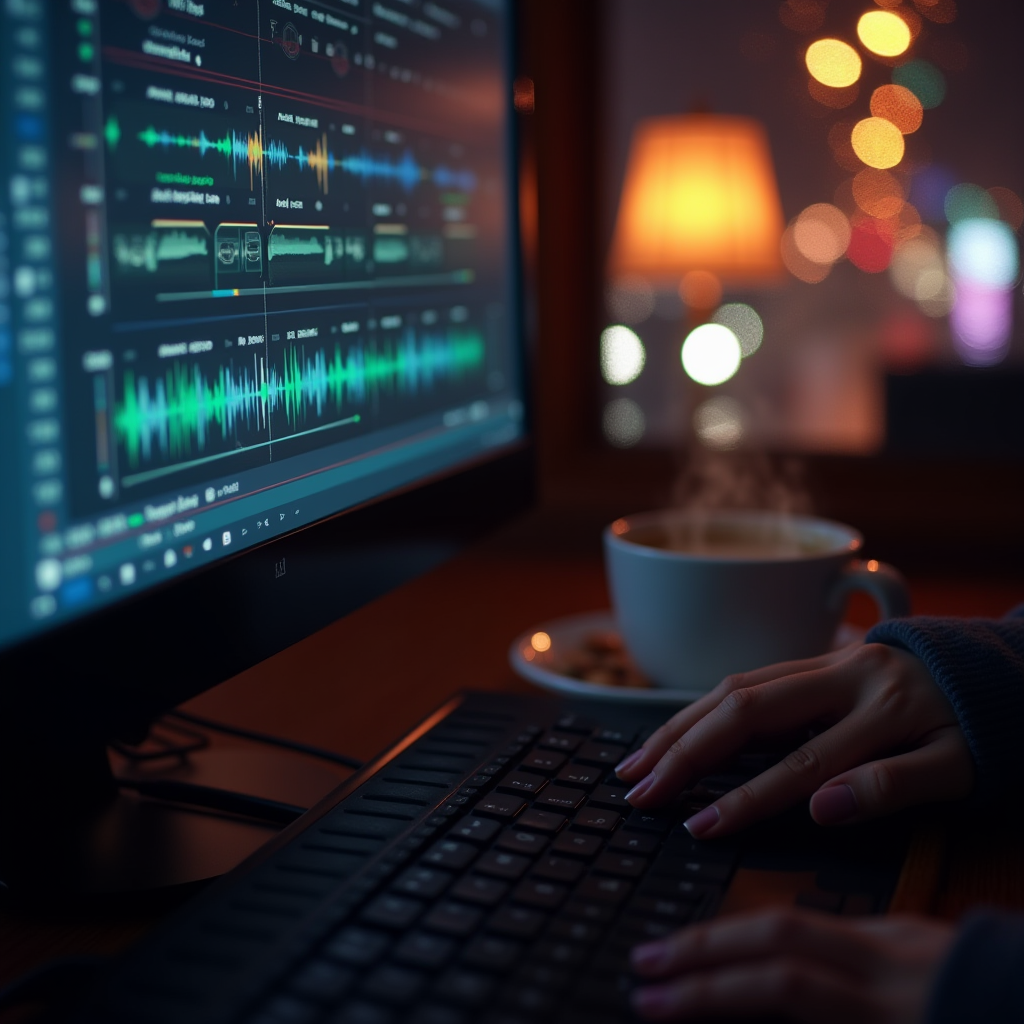
To verify the connection, hit the “Test Stream” button. You should see a green status indicator and a short preview of your audio in the waveform view. If the test succeeds, you’re ready to move on to fine‑tuning.
Tuning Encoder Settings for Ultra‑Low Latency
The Live‑Encoder gives you granular control over codecs, bitrates, and buffering. For most online radio setups, Opus at 64 kbps provides excellent clarity with low bandwidth, but if you need broader device compatibility, AAC‑LC at 96 kbps works well too.
Next, shrink the audio buffer. In the “Latency Mode” dropdown, select “Ultra‑Low”. Then set the buffer size to the smallest value your hardware can handle—typically 64 ms. Reducing the keyframe interval to 1 second (instead of the default 2‑second GOP) also trims latency because the player receives fresh reference frames more often.
Enable “Fast Start” in the advanced options; this forces the encoder to send the initial header packets immediately, skipping the usual 2‑second warm‑up. Finally, turn off any built‑in noise‑gate or limiter unless you absolutely need them, as each processing stage adds milliseconds.
After applying these changes, click “Apply & Restart”. The encoder will reboot with the new profile, and you should see the latency meter drop below one second during a quick test broadcast.

Syncing with LoovaCast Radio Automation
With the encoder humming, you now need to tie it into LoovaCast’s automation engine. In the dashboard, navigate to “Streaming Endpoints” and copy the primary RTMP URL. Paste that URL into the encoder’s “Output URL” field, and make sure the Stream Key matches the one you used earlier.
It’s wise to set up a backup stream URL—LoovaCast offers a secondary ingest point that automatically activates if the primary drops. Enter that address in the “Backup URL” slot; the encoder will switch over within seconds, keeping your audience on air.
Schedule your live slots in the “Automation” tab. Create a new “Live Event”, choose the start and end times, and link it to the encoder you just configured. LoovaCast will automatically switch from your playlist to the live feed at the scheduled moment.
- ☑ Encoder linked to station URL
- ☐ Backup stream URL entered
- ☐ Automation schedule verified
- ☐ Test broadcast completed
Testing, Monitoring, and Troubleshooting Live Streams
Before you go full‑throttle, run a short 2‑minute test broadcast. Use an online timer (like time.is) and speak a clear phrase at the start. Listeners can note the delay by comparing the spoken word to the timer on their screen, giving you a real‑world latency measurement.
LoovaCast’s analytics panel shows packet loss, jitter, and bitrate in real time. If you see loss above 1 % or jitter spikes over 30 ms, pause the broadcast and check your network. A quick reboot of the router or switching to a wired connection often resolves the issue.
Common hiccups include audio dropouts caused by USB power saving. Disable Windows’ “USB selective suspend” and macOS’s “Energy Saver” settings for the audio interface. Codec mismatches happen when the encoder is set to Opus but the endpoint expects AAC; double‑check both sides of the pipeline.
Network spikes can be mitigated with a simple QoS rule on your router, prioritizing UDP traffic on the port LoovaCast uses. This ensures your audio packets get ahead of background downloads or video streams, keeping the broadcast buttery smooth.

Final Checklist & Next Steps for Your Remote Broadcast
Let’s recap the essentials before you hit “Go Live”. Verify your microphone gain levels, confirm the encoder is running the ultra‑low latency profile, and double‑check that the primary and backup URLs are correct. Ensure your internet upload speed exceeds the chosen bitrate by at least 30 %.
Run a final test broadcast, watch the latency meter, and glance at LoovaCast’s analytics for any red flags. Once everything looks green, lock in your automation schedule and announce the show on social media.
Looking ahead, you can expand your online radio setup with multi‑host configurations, using a portable mixer that accepts multiple XLR inputs. Satellite links are an option for truly remote locations, and LoovaCast’s AI‑driven audio normalization can keep levels consistent across different contributors.
Ready to launch your station? Get started with LoovaCast — your radio, your way.